
Secure Check Printing Logo
Home
• Software Features• View Demo
Pricing
• Blog• Comparisons• Guides / Tutorials
• FAQ• Contact Us
About
DemoMy account
Secure Check Printing Logo

Improve efficiency, provide a better Customer experience with modern Technolo services available.

Secure Check Printing Logo
Home
Secure Check Printing Logo
Features
Secure Check Printing Logo
Pricing
Secure Check Printing Logo
Faqs
Secure Check Printing Logo
About
Secure Check Printing Logo
View Demo
Secure Check Printing Logo
Blog
Secure Check Printing Logo
Comparisons
Secure Check Printing Logo
Guides / Tutorials
Secure Check Printing Logo
Contact
support@securecheckprinting.org
+1 (682) 458-1476
Secure Check Printing Logo
Terms & Conditions
Secure Check Printing Logo
Privacy Policy

© Copyright Secure Check Printing . All Rights Reserved

Guide/TutorialsGuide/Tutorials

HomeGuide/Tutorials
• Getting Started• Installation & Setup• Registering Your License• Starting the 10-Day Trial• Adding Corporations• Adding Bank Accounts• Creating Payees• Printing Checks• Printing Deposit Slips• Password Recovery & Security Questions• Profile & Backup Options• Migrating or Restoring Data• License & Activation Management• Deactivating the Software

Adding Your  Corporation Details

After activating your license or starting the demo, the first setup step is to create your corporation profile. This profile represents the company or business whose checks and deposit slips you’ll be printing.

Why a Corporation Profile Matters

Every check or deposit slip you create will include your corporation details — name, address, and signature — exactly as printed on real bank documents. Setting this up once ensures all future slips and checks automatically carry the correct branding and authorization.
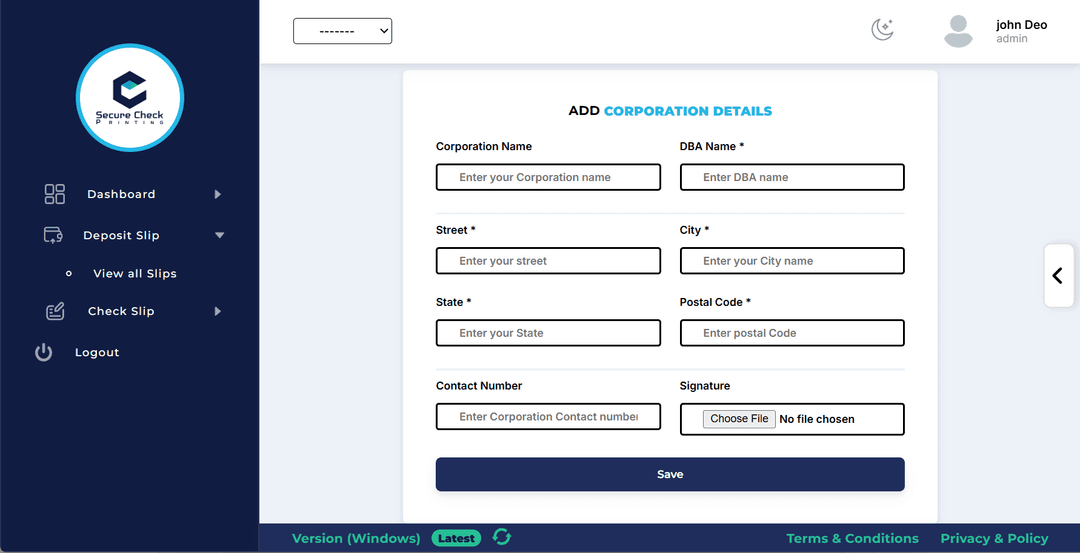
Steps to Add Corporation Details

  • 01
    Open the software and go to the Corporations section.
  • 02
    Fill in the following details:
    • •   Corporation Name
    • •   DBA (Doing Business As)
    • •   Street, City, State, Postal Code
    • •   Contact Number (optional)
    • •    Authorized Signature Image (optional – used for auto-signing checks)
  • 03
    Click Save to finish creating the corporation.
corporation page

Once added, the system automatically links this corporation to your checks and deposit slips.
If you’ve added multiple corporations, the admin can easily switch between them when creating a new check or deposit.
All corporation details — including the signature image — are securely stored locally, ensuring everything stays offline and private.
Your corporation name and address will now appear on your checks and deposit slips — just like shown below 👇
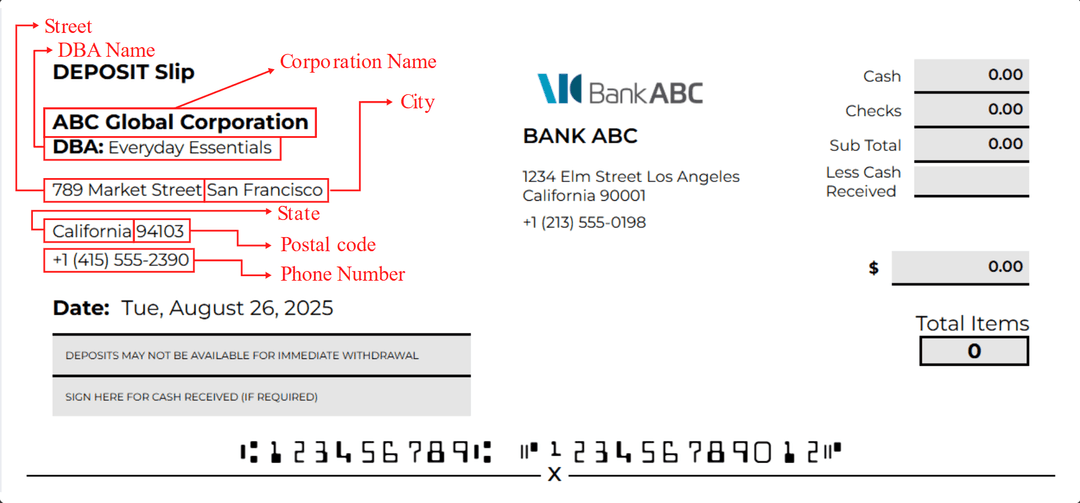
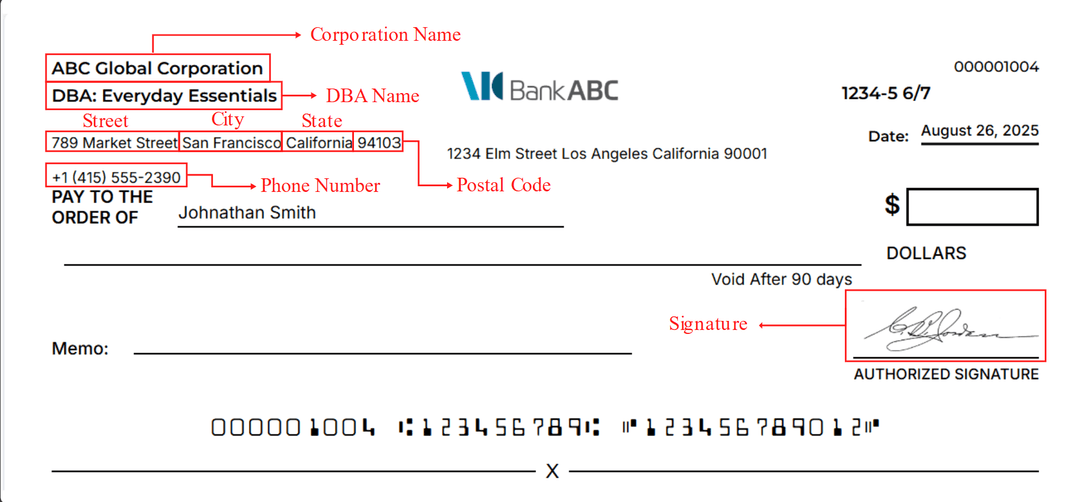
deposit slip

Deposit Slip

check slip

Check Slip