Secure Check Printing Logo
Home
• Software Features• View Demo
Pricing
• Blog• Comparisons• Guides / Tutorials
• FAQ• Contact Us
About
DemoMy account
Secure Check Printing Logo

Improve efficiency, provide a better Customer experience with modern Technolo services available.

Secure Check Printing Logo
Home
Secure Check Printing Logo
Features
Secure Check Printing Logo
Pricing
Secure Check Printing Logo
Faqs
Secure Check Printing Logo
About
Secure Check Printing Logo
View Demo
Secure Check Printing Logo
Blog
Secure Check Printing Logo
Comparisons
Secure Check Printing Logo
Guides / Tutorials
Secure Check Printing Logo
Contact
support@securecheckprinting.org
+1 (682) 458-1476
Secure Check Printing Logo
Terms & Conditions
Secure Check Printing Logo
Privacy Policy

© Copyright Secure Check Printing . All Rights Reserved

Guide/TutorialsGuide/Tutorials

HomeGuide/Tutorials
• Getting Started• Installation & Setup• Registering Your License• Starting the 10-Day Trial• Adding Corporations• Adding Bank Accounts• Creating Payees• Printing Checks• Printing Deposit Slips• Password Recovery & Security Questions• Profile & Backup Options• Migrating or Restoring Data• License & Activation Management• Deactivating the Software

Password Recovery & Security Questions

Passwords can sometimes slip the mind, but don’t worry — your software has a simple and secure recovery system. Whether you’re the Admin or a User, here’s how it works.

For Admin: Recovering a Forgotten Password

If the Admin forgets their password:

  • 01
    Go to the Login Page.
  • 02
    Enter your username or email.
  • 03
    The system will detect you as the Admin and display the “Forgot Password” option.
  • 04
    Click it — you’ll be asked to answer the three security questions you set during registration.
  • 05
    If all answers match correctly, you’ll be allowed to create a new password and regain access.

Tip: Make sure to remember your security question answers. they’re the key to getting back in.


forgot pagequestion-page

For Users: If a User Forgets Their Password

Users can’t directly reset their password themselves.
If a User loses access:

  • 01
    The Admin opens the Profile page.
  • 02
    At the bottom section where all users are listed, the Admin clicks the user’s name.
  • 03
    A password reset page opens — the Admin simply enters the new password and confirm password fields.
  • 04
    Once saved, the user can log in again using the new password.
  • 04
    Once saved, the user can log in again using the new password.

💡 Only the Admin has permission to reset user passwords — it keeps security in the right hands.
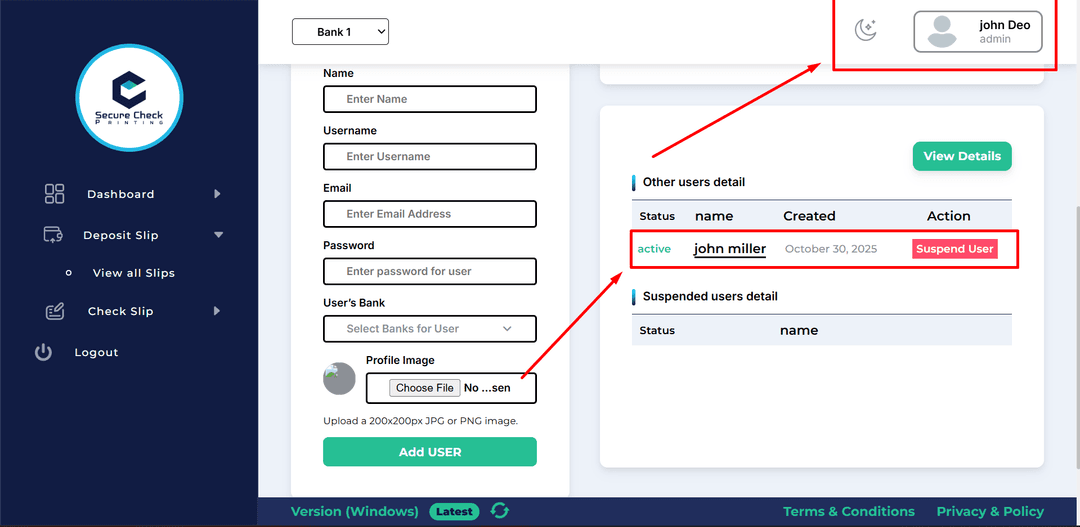

forgot user password
forgot user passwordforgot user  password

✏️ Changing Your Own Password

Changing your password anytime is easy:

  • 01
    Click the Profile icon at the top-right corner of any page.
  • 02
    Select Change Password.
  • 03
    Enter your current password, then your new password, and confirm it.
  • 04
    Save changes — your new password is instantly active.

✅ That’s it! Simple, secure, and admin-controlled — just the way offline security should be.
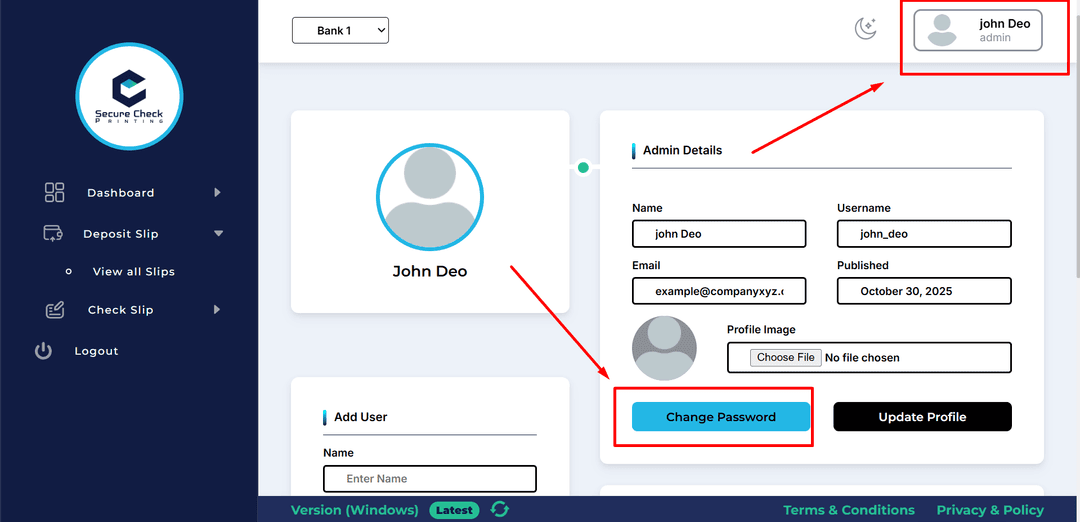

change password
change-password-2change password