
Sometimes you may need to move your Secure Check Printing software to a new computer — maybe you upgraded your system, changed your hard drive, or just need a fresh setup. No worries — the app makes this process simple, safe, and offline-ready.
Each purchase key is tied to one machine only. If you want to shift your setup to another system, you must first take a backup and then deactivate your license from the old one.
Before migration, make sure you’ve backed up all your data.
Your backup includes:
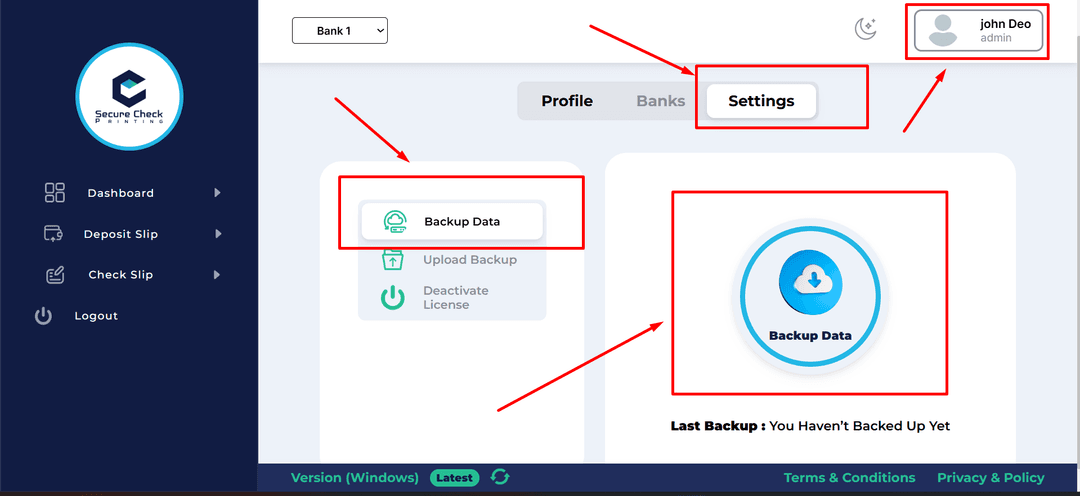
Need help taking a backup?
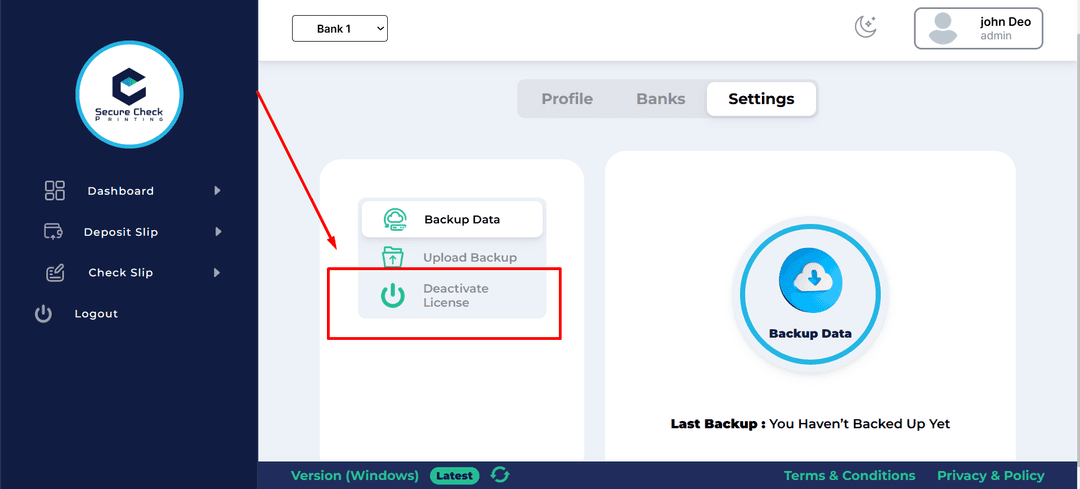
👉 Click here to learn how to create a backupOnce the backup is saved, open the app and go to:
Profile → Settings → Deactivate Software
This step:
If you skip this step, your license won’t activate on the new system.
Download and install the latest version of Secure Check Printing on your new machine. If you’re unsure how to install it👉 click here to view the installation guide
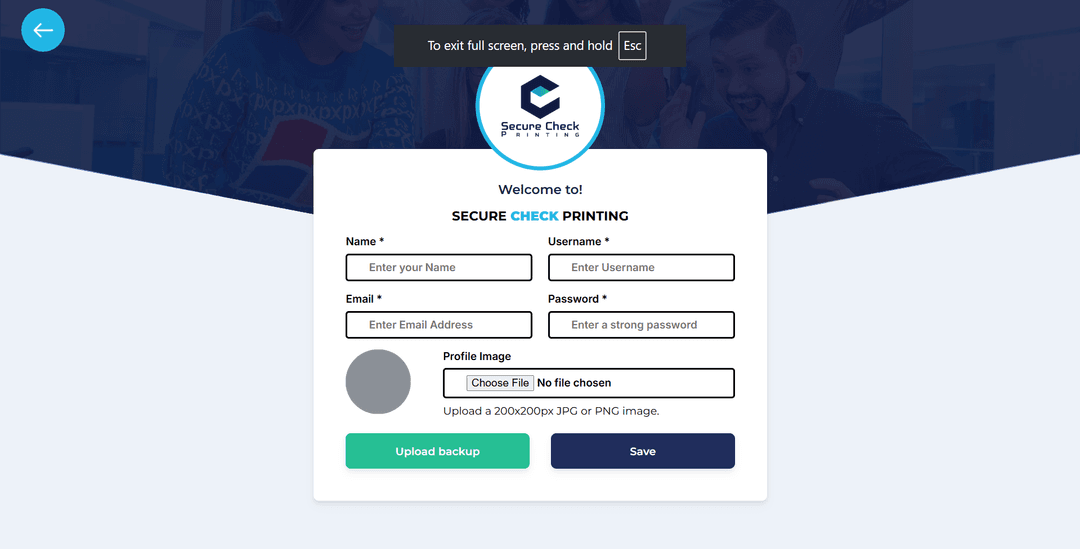
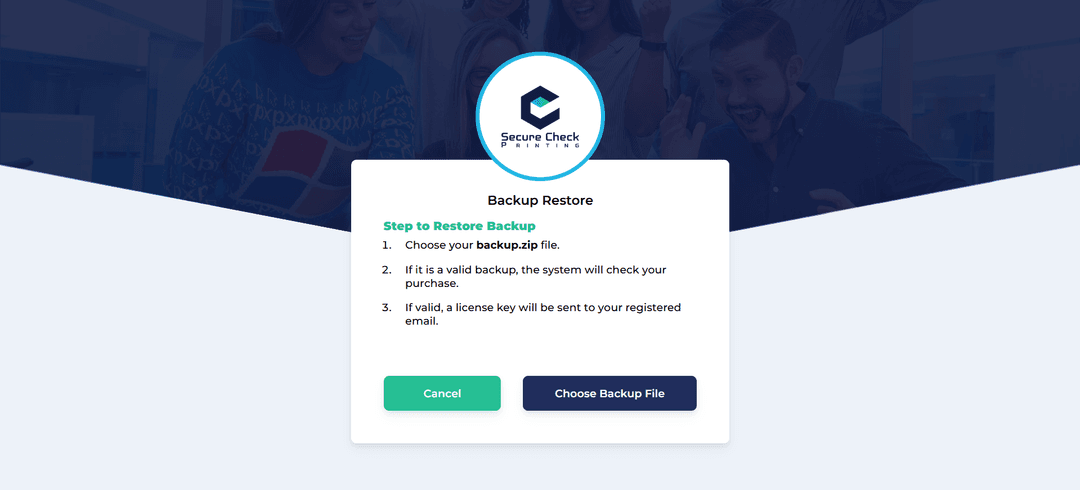
Enter the license key, activate, and continue your work — all your data will be safely restored just as before.
✅ That’s It!
You’ve successfully migrated your Secure Check Printing system to a new computer. All accounts, payees, checks, and banks are restored automatically, ready for use.
💡 Pro Tip: Always keep your backup file in a secure external drive or cloud folder. It can save you from data loss in emergencies or system crashes.