🧾 Printing Checks
Checks are the heart of the Secure Check Printing system — and creating them is designed to be as easy and secure as possible. Once your payees, banks, and corporations are set up, you’re ready to start printing professional checks with MICR accuracy.
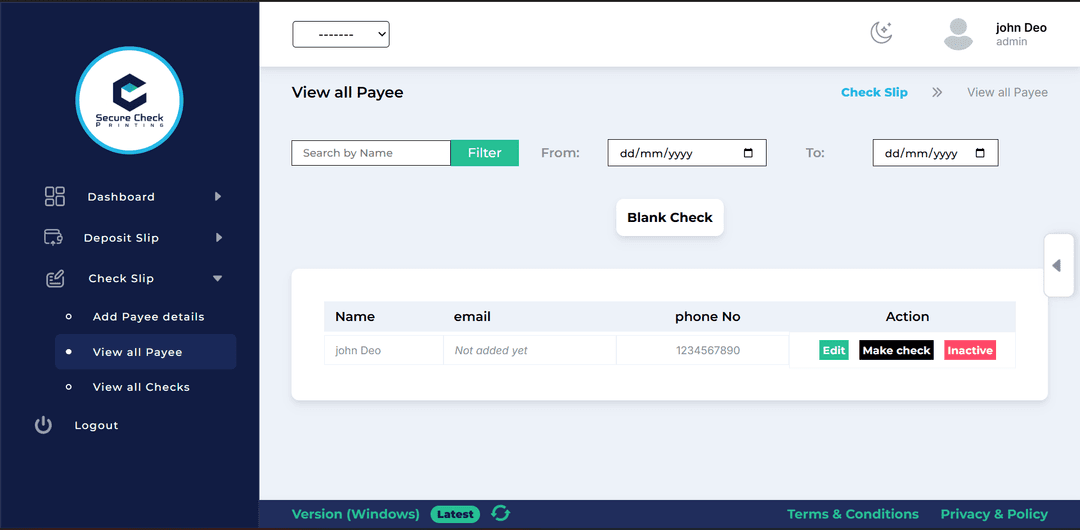
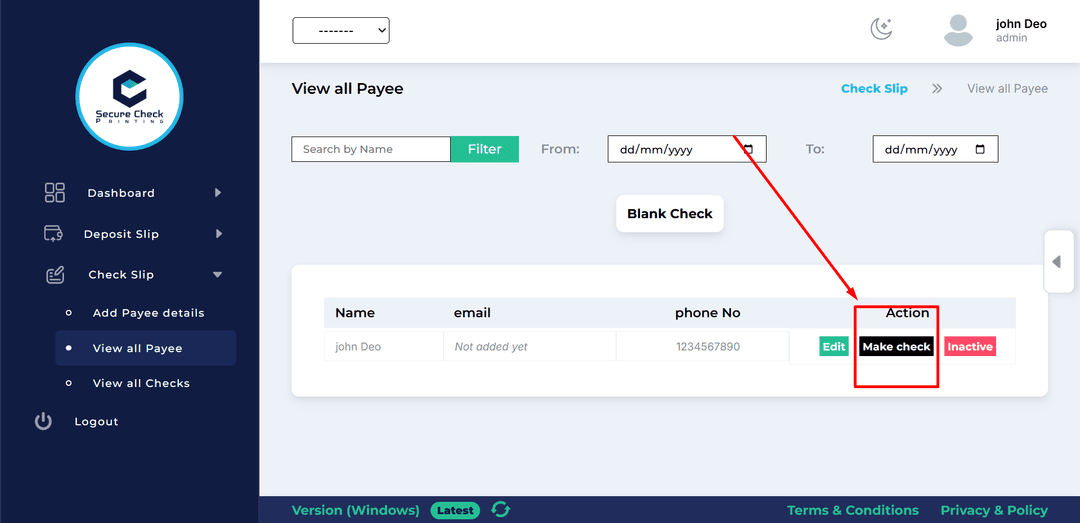
The View All Payees section is where check creation begins. Here you’ll find a list of every payee you’ve added — along with quick options to manage and print checks.
01
Make Check: Click this button next to any active payee to open the check creation popup.02
Print Blank Check: Generate a blank check (without a payee) — simply enter the date, and the system will print it using the currently selected bank. Perfect for testing layouts or pre-signed checks.03
Activate / Deactivate Payee: Keep your list clean by toggling inactive payees. Deactivated payees stay visible for record purposes but cannot be used to issue new checks.
When you click Make Check, a smooth popup opens with all the essential details.
Fields You’ll See:
01
Date: Auto-filled with today’s date, but editable if needed.02
Amount: Enter the amount to print on the check.03
Memo: Optional field for internal notes or short descriptions.04
With Signature / Without Signature:- • With Signature: Automatically prints the signature image.
- • Without Signature: Leaves space for manual signing.
Once the details are added, click Create Check — and your printable check layout appears instantly, fully formatted with bank MICR details, routing numbers, and corporation info.
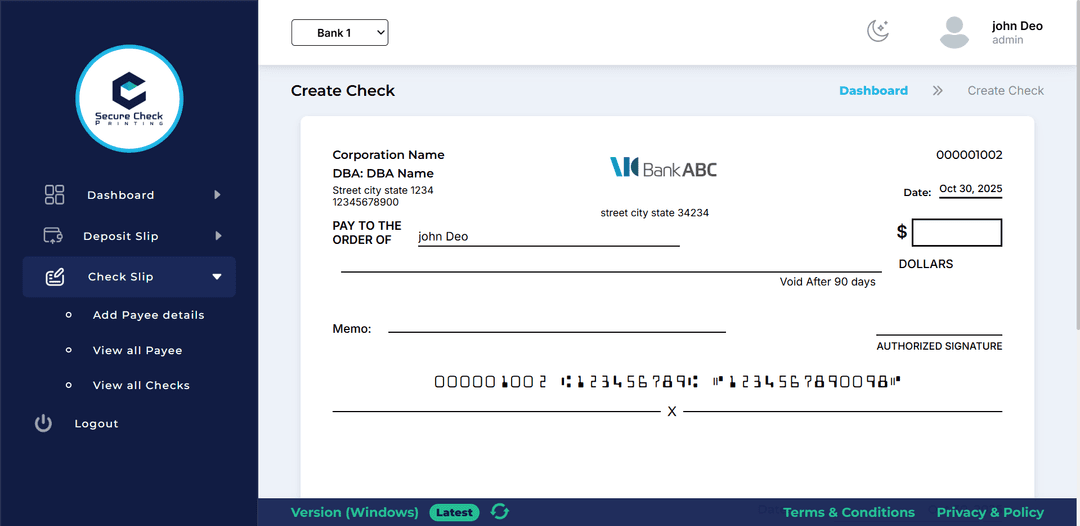
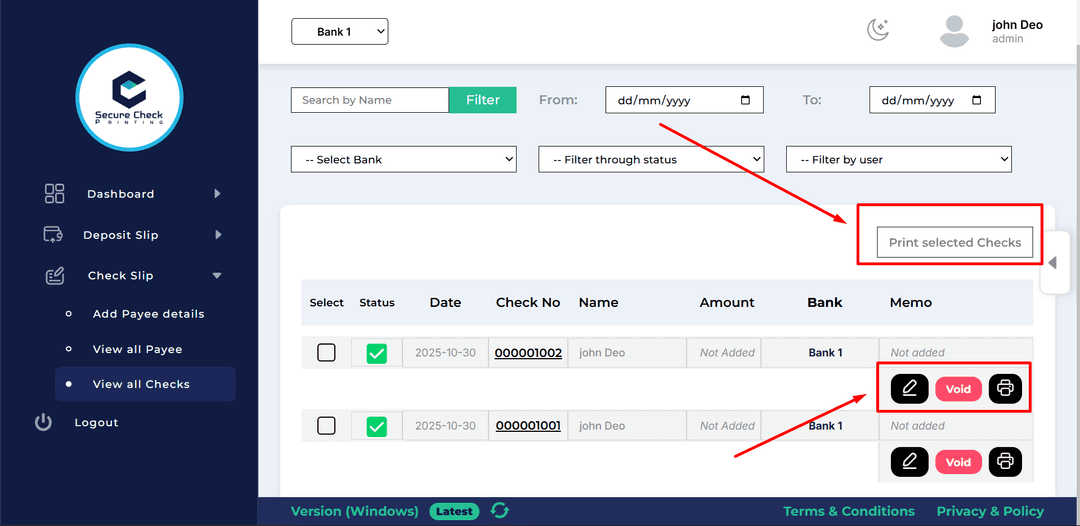
Every created check automatically appears in the View All Checks section. This page acts as your digital checkbook register — neat, searchable, and easy to manage.
Features Include:
01
Comprehensive List: Shows check date, bank used, amount, payee, and status.02
Role-Based View:- • Admin: Can view all checks created by all users.
- • User: Sees only their own checks.
03
Print Options:- • Print a single check directly.
- • Select multiple checks and print them together — ideal for batch printing.
04
Edit Options:- • Admin or authorized users can update Amount or Memo if needed.
- • Admin or authorized users can update Amount or Memo if needed.
Every printout maintains a professional format, perfectly aligned for MICR-compatible check paper.
When printing, the system ensures:
01
The latest check details are always used.02
Updated checks reflect in your records automatically.03
Each printed copy carries its unique check number linked to the selected bank.
Once printed, you can safely store, reprint, or void checks from the same interface.