Printing Deposit Slips
Deposit slips group checks and cash into one printable bank deposit. They’re built to be fast, accurate, and printer-ready — perfect for end-of-day or batch banking.
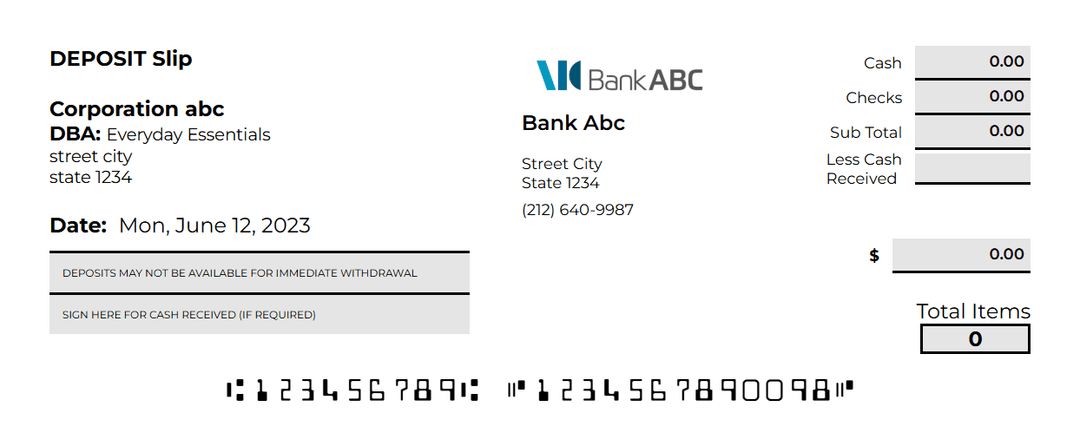
A deposit slip has two main parts:
01
Shows selected corporation and bank details.02
Shows totals: Total items, Total cash, Total checks, and Grand total.03
The Date is editable so you can set the deposit date you want printed on the slip.
01
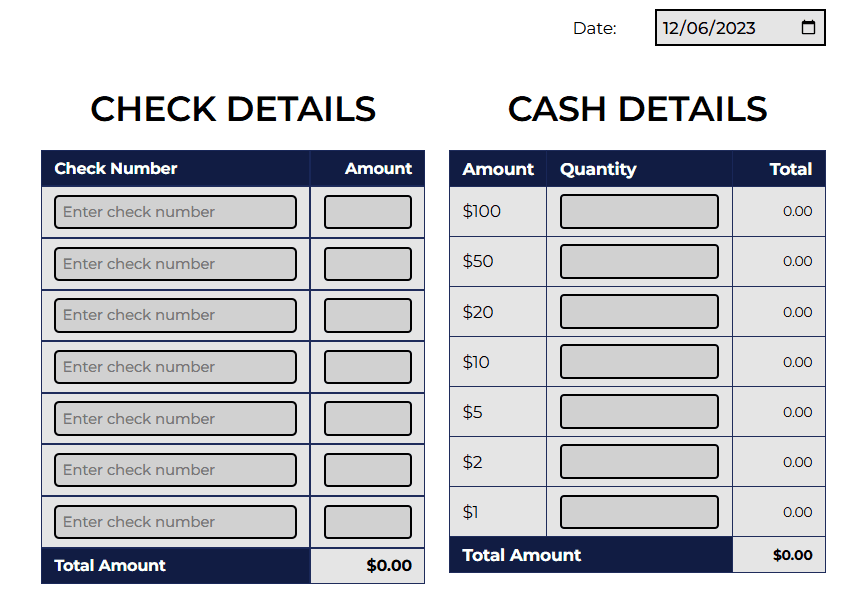
Checks area: up to 7 check entries. Each entry has Payee Name, Check Number, and Amount.02
Cash area: denomination inputs for $100, $50, $20, $10, $5, $2, $1. The system automatically calculates the cash total from these fields.
Everything is summed automatically — you only enter the check amounts, check numbers, and cash counts/amounts. The app shows running totals so you can confirm before printing.
01
Open Deposit Slip02
Choose the Bank (the bank switch tag at the top helps you change active bank). If only one bank exists, it’s selected by default.03
Add up to 7 checks: for each, enter the Name, Check #, and Amount.04
Enter cash breakdown (100, 50, 20, 10, 5, 2, 1). Totals update automatically.05
Use the two action buttons:- • Print Slip — saves the deposit slip and opens the print preview so you can print immediately. After printing you return to the deposit editor/view.
- • Save Slip — saves the deposit slip to the system and resets the inputs so you can start a new one.
01
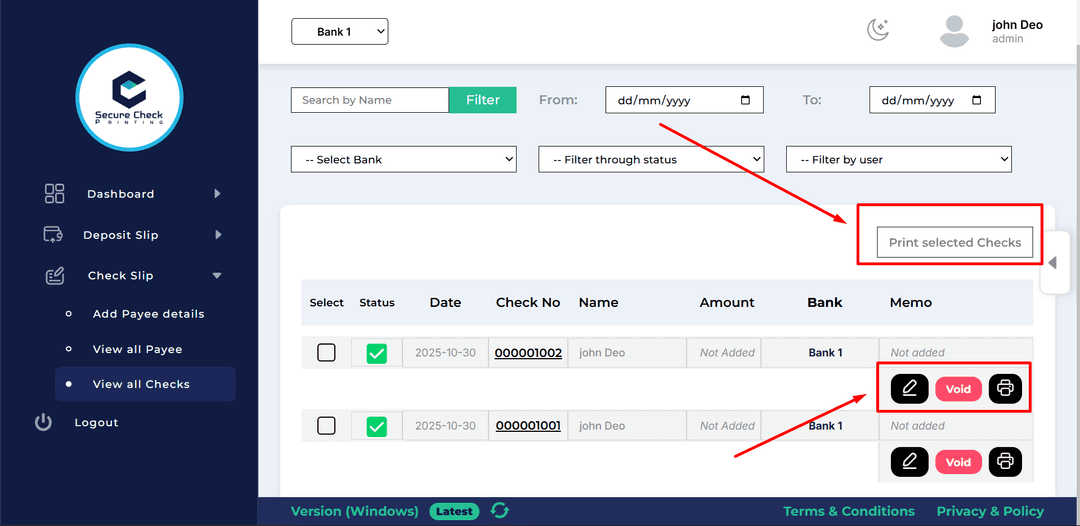
Any saved deposit slip can be edited later (change check amounts, check numbers, date, or cash breakdown).02
From the deposit list you can print a single slip or select multiple slips and click Print Selected to produce batch prints.
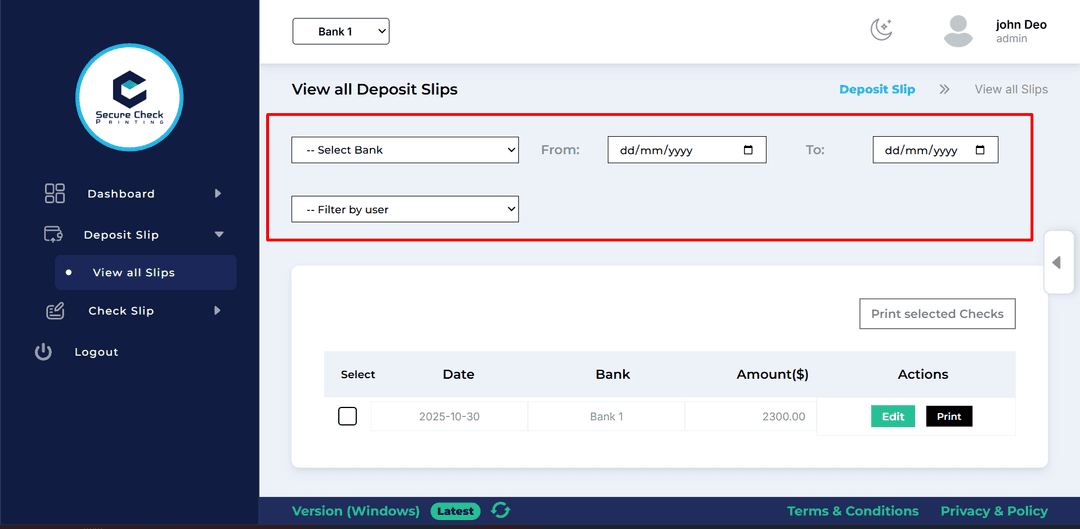
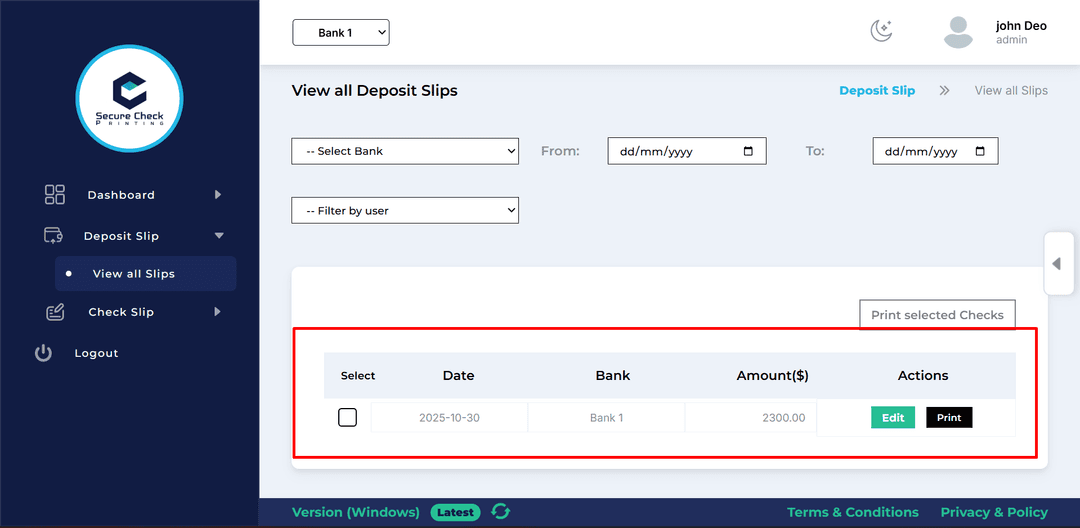
The View All Slips page acts like your deposit ledger.
01
Filter by Bank02
Date before03
Date after04
Filter by User
01
Filter by Bank, Date before, Date after (user filter not shown)
01
Select (for multi-print)02
Date (deposit date)03
Bank (which account was used)04
Amount ($) (grand total)05
Actions — Print and Edit
Admins see every slip created by anyone; regular users see only the slips they created.
01
The deposit slip uses the currently selected bank — if multiple banks exist you can switch quickly using the top bank tag across pages.02
Deactivated banks remain visible for historical records, but are not used for creating new deposits.03
The deposit date is editable so printed records match your bank deposit date, even if you prepare slips in advance.
All fields and buttons are designed to minimize mistakes — the sums are calculated for you and actions are clear: Print = save + open printer; Save = save + reset.
Your deposit slips will look like bank-ready documents and reflect the checks and cash exactly as entered.